
Updated October 2026: steps checked against the current cPanel docs, and we added the command-line method.
If you’re moving sites to a new cPanel server, copy your EasyApache 4 profile over before you move a single account. It’s a short job, and it means the new box has the same Apache modules, PHP versions and PHP extensions the sites were built against.
What is EasyApache 4?
EasyApache 4 (EA4) is the part of cPanel & WHM that installs and manages Apache, PHP and their modules. Everything it installs is an ordinary system package whose name starts with ea-, such as ea-apache24 or an ea-php version. An EA4 profile is a JSON file that lists which of those packages a server should have, so you can rebuild the same web stack on another machine.
Why bother with the profile?
Here’s the failure it prevents. A site on the old server uses the mbstring extension. The new server doesn’t have it. You move the account, the site throws a fatal error, and you spend the end of a migration hunting down modules one at a time.
A profile won’t catch everything (custom php.ini values and anything installed outside EA4 still need checking), but it gets the packages right in one pass.
Still on EasyApache 3?
EasyApache 3 was deprecated at the end of 2018, and a server still running it is years behind on cPanel updates. It has no EA4 profile to export. Build the new server on EasyApache 4, pick the PHP versions and extensions by hand from what the old sites use, and move the accounts afterward.
1. On the old server, convert your current setup to a profile
- Log in to WHM and go to WHM » Home » Software » EasyApache 4.
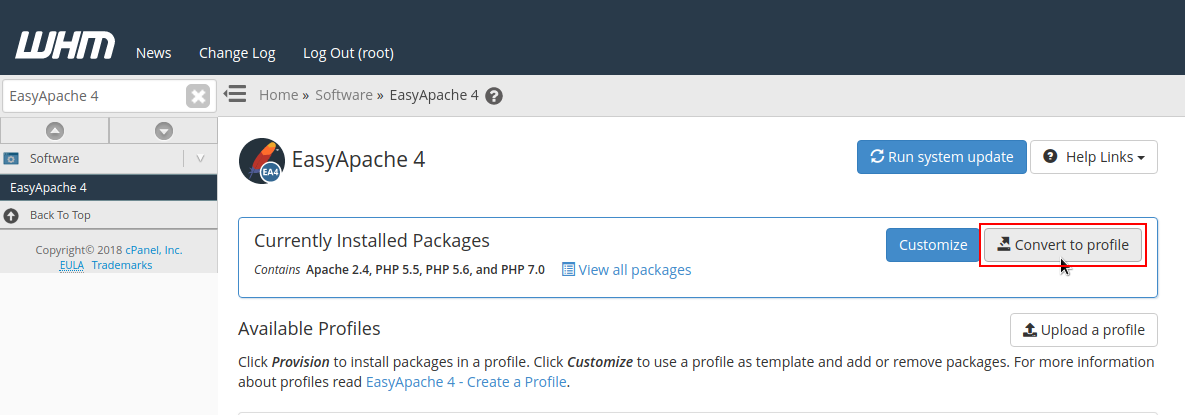
- In the Currently Installed Packages section, click Convert to profile.

- Enter a profile name and a file name. Leave off the
.jsonextension; WHM adds it. A description and tags are optional. - Click Convert.

WHM saves the profile to /etc/cpanel/ea4/profiles/custom/. That path matters for the next step.
2. Copy the profile file off the old server
The cPanel docs don’t describe a download button for profiles, so the dependable way is to copy the JSON file yourself. If the new server is already up, send it straight across (swap in your own file name and hostname):
scp /etc/cpanel/ea4/profiles/custom/oldserver.json root@new-server:/etc/cpanel/ea4/profiles/custom/If you’d rather use the WHM upload screen in step 3, pull the file down to your workstation instead:
scp root@old-server:/etc/cpanel/ea4/profiles/custom/oldserver.json .3. Check which ea-php versions the new server offers
Do this before you provision. A profile from an older server can list PHP versions that the new server’s OS no longer ships, and EA4 can’t install a package that isn’t in its repository. The same goes for moves between distributions: cPanel’s docs note that package names on Ubuntu use hyphens where AlmaLinux uses underscores, so a profile built on one may not match the other cleanly.
Two ways to check:
- In WHM’s EasyApache 4 screen, click Customize and step through to the PHP versions list. That’s what this server can install.
- From a shell, run
dnf list 'ea-php*'on AlmaLinux or CloudLinux, orapt list 'ea-php*'on Ubuntu.
If a site depends on a PHP version the new server doesn’t offer, sort that out now. Upgrading the site’s code is a separate project, and you don’t want it landing in the middle of a cutover.
4. Provision the profile on the new server
From WHM
- Go to WHM » Home » Software » EasyApache 4.
- If you copied the file to your workstation, click Upload a profile, then Browse, pick the JSON file and click Upload. (Tick Overwrite an existing profile if you’re replacing one with the same name. There’s also a Retrieve from URL option.) If you used scp straight into
/etc/cpanel/ea4/profiles/custom/, the profile should already be in the list. - Find your profile and click Provision.
- Read the review screen. It lists the packages EA4 will install, upgrade and uninstall. Provisioning replaces the current package set, so anything not in the profile gets removed.
- Click Provision again to start the build, then Done when it finishes.
From the command line
The ea_install_profile script from cPanel’s ea-cpanel-tools does the same job. Give it a full path, or just a file name and it looks in /etc/cpanel/ea4/profiles/custom/. Run it without flags first. That only resolves package conflicts and doesn’t install the profile’s packages:
ea_install_profile oldserver.jsonWhen you’re happy with the result, install for real:
ea_install_profile --install oldserver.json5. Move the accounts
With the web stack in place, use WHM » Home » Transfers » Transfer Tool on the new server to pull accounts across from the old one. Once they land, open MultiPHP Manager and confirm each domain is on the PHP version you expect, then test the sites before you change DNS.
If you’re moving to GigeNET from another host, we migrate your cPanel accounts to the new server free. See our cPanel dedicated servers, or ask for a quote and tell us what you’re moving. Rather hand off the server work after the move too? Look at GigeNET’s managed services.
